
Only through VPN
Select Chrome if you want Chrome to use GRANI while other apps use your regular connection.
Send selected apps through GRANI, or keep particular apps on your regular connection. Choose a mode, select your apps, then reconnect to apply the list.
24 hours without a card · up to 5 devices · subscription purchased separately
GRANI · Updated
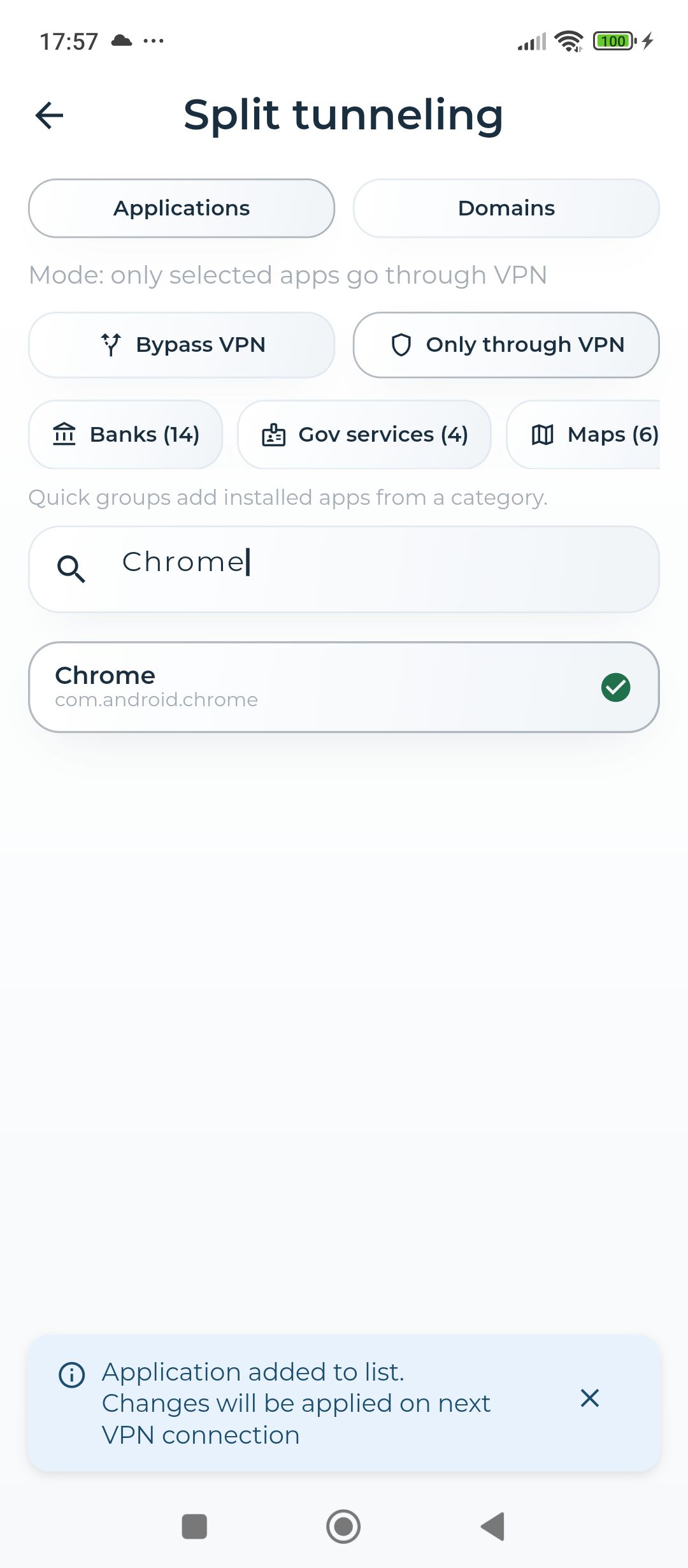
Configure per-app VPN routing on Android and check which connection the selected apps use.
Select Chrome if you want Chrome to use GRANI while other apps use your regular connection.
Select Chrome if you want Chrome on your regular connection while other apps use GRANI.
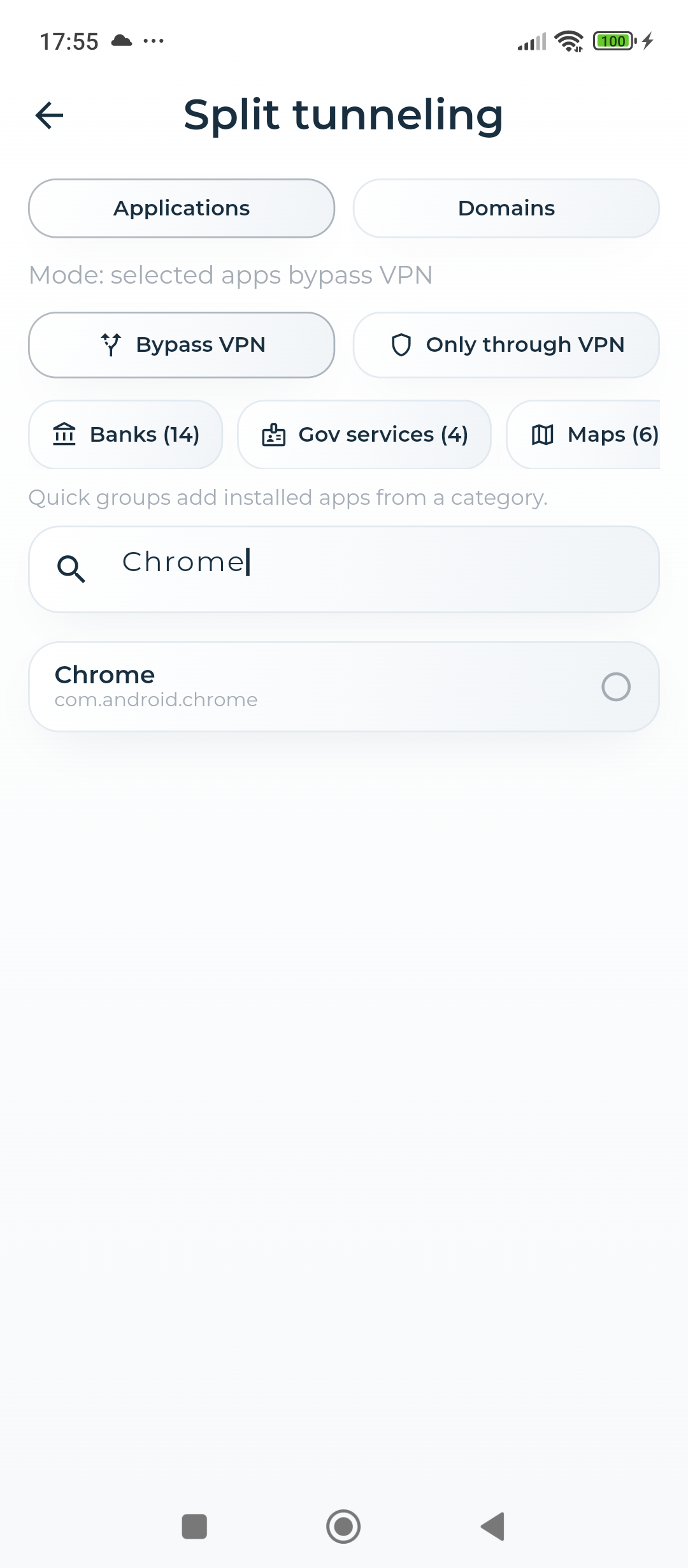
From the GRANI home screen, open Menu and tap Split tunneling. Keep the Applications tab open.
Choose your mode first. Type Chrome in Search app and tap the Chrome row to mark it. Review the other selections in that mode before you connect.
If GRANI is connected, disconnect and wait for VPN to turn off. Then connect again. GRANI applies the list when it creates the next VPN connection.
Check that a known site loads in Chrome and in a second browser with no entry in the list. If you use an IP check page, compare the displayed routes with your regular connection and the VPN server. The selected mode determines which browser should use each route.
Android policies such as Block connections without VPN and work profiles can affect bypass traffic. Compare the result in the app you need after reconnecting.
Choose Only through VPN, select that app, and reconnect. Review the list to make sure it contains the apps you intend to route through GRANI.
Choose Bypass VPN, mark that app and reconnect. The app then uses your regular connection if your Android device policy allows it.
GRANI applies it on the next connection. Disconnect, wait for the VPN to stop, then connect again.
This tab routes Android apps. Websites opened in the same browser follow that browser's app route. GRANI provides a separate Domains tab.
The trial does not create a paid subscription.